Integration with the National e-Invoice System (KSeF) allows you to automate invoice processing for reservations in Lockme. Once configured, Lockme can automatically issue an invoice, send it to KSeF, and notify the customer when it is available.
How do I set up the KSeF integration?
The integration must be set up in the Lockme dashboard under the Integrations tab.

To add a new integration:
Go to the Integrations tab.
Click Add.
Select the branch for which you are configuring the integration.
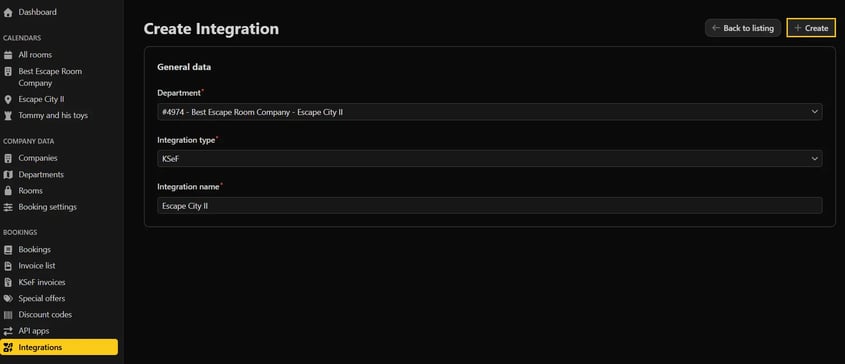
Select KSeF as the integration type.
Enter a name for the integration.
Create the integration.

Important: The KSeF integration must be configured separately for each branch. If a company has multiple branches, each one requires its own integration.
Integration Settings
After creating the integration, you must enter the data needed for automatic invoicing.
Access Token
In the Access token field, enter the token generated in the KSeF Taxpayer Application, in the Tokens section.

The token must have permissions to issue invoices.
Other Settings
In the configuration, you can specify, among other things:
the invoice number prefix,
the start date for automatic invoicing,
the option to automatically send invoices to KSeF,
the VAT rate,
the Tax ID (NIP) and company details.
The start date for automatic invoicing determines when reservations can be processed by the automated system. Reservations made on or after this date will be invoiced automatically.
When you first launch the integration, we recommend leaving the automatic invoicing option turned off. After verifying the first invoice, you can enable automatic invoicing. From that point on, subsequent invoices will be processed automatically.

After completing the configuration, save the settings and activate the integration.
What happens when a customer requests an invoice?
If a customer indicates during the booking process that they want to receive an invoice:
The system will save this information along with the details provided by the customer to the invoice.
You’ll receive an email notification informing you that the customer has requested an invoice.
The invoice request will also be visible in the calendar as an invoice icon.
When you view the reservation details, you’ll be able to review the billing information provided by the customer.
The next steps depend on whether automatic invoicing is enabled in the integration.
Automatic Invoice Issuance
If automatic invoice issuance is enabled, you do not need to issue the invoice manually. The system will handle it after the reservation is settled, which is 2 days after the game date. At that time, it will automatically:
prepare an invoice based on the booking details,
issue it and send it to KSeF,
send the customer an email with invoice information, a QR code, and a “View Invoice” button.
Manual Invoice Issuance
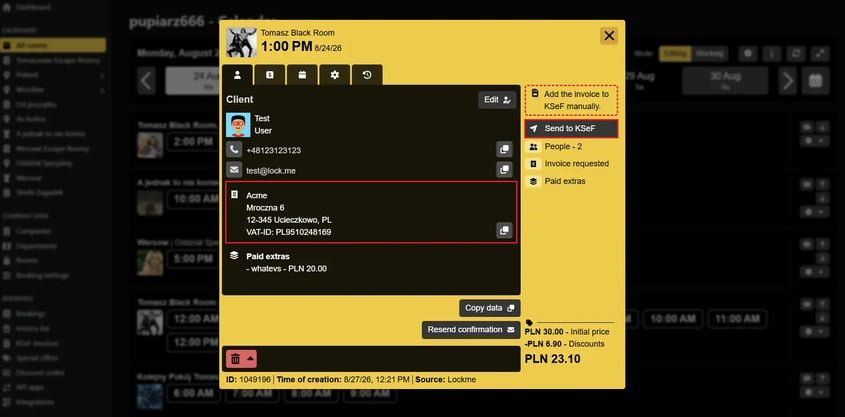
If the automatic invoice issuance option is not enabled, Lockme will not issue an invoice on its own. The customer’s request for an invoice will remain visible in the system and will require manual processing. To issue an invoice:
Go to the calendar and open the details of the reservation for which the customer requested an invoice.
Verify the invoice details provided by the customer.
Click “Send to KSeF” to submit the invoice to KSeF.

What happens after the invoice is sent to KSeF?
Once the invoice is sent to KSeF, further processing takes place outside of Lockme, directly in KSeF.
This means that if additional actions are required after the invoice is issued—such as issuing a correction—you must do so yourself in KSeF. Lockme is used to prepare and submit invoices as part of the integration, but it does not handle subsequent changes to a document already in KSeF.
Where can I view issued KSeF invoices?
Invoices processed through the integration can be viewed in the Lockme dashboard under the KSeF Invoices tab. This allows you to monitor invoices issued through the integration, check their status, and download them.
Need help?
Do you have questions about the KSeF integration or need help configuring it? Contact us at +48 577 502 902 or via email at support@lock.me