Two-factor authentication (2FA) is a simple way to enhance the security of your account. In this post, you’ll learn why you should enable it, how it works, and how to set up an authentication app and activate additional protection during login, step by step.
What is two-factor authentication?
Two-factor authentication, also known as 2FA or TOTP, is an additional layer of account security. When logging in, the user confirms their identity using two factors:
their account password,
and a one-time code generated by an authentication app.
The code typically changes every 30 seconds and works only on the device where the authentication app is set up.
Why do we recommend 2FA?
A password alone does not always provide sufficient protection. It can be compromised, for example, as a result of:
using the same password across multiple services,
a data breach at another service,
a phishing attack,
saving the password on an unsecured device,
or a compromise of your email account or password manager.
To protect your data and ensure the security of the platform, we recommend using two-factor authentication (2FA). Even if your password is compromised, it will not be possible to log in to your account without a one-time code from an authentication app. This significantly reduces the risk of unauthorized access to user accounts and administrative functions.
Supported Apps
You can use any app compatible with the TOTP standard for setup, such as:
Google Authenticator,
1Password,
Bitwarden,
Aegis,
Authy.
How to enable two-factor authentication?
Step 1. Open the security settings
Log in to your Lockme account.
Go to the Edit Profile tab.
In the menu on the right, select Security.
In the Two-Factor Authentication section, click the Set up authenticator app button.
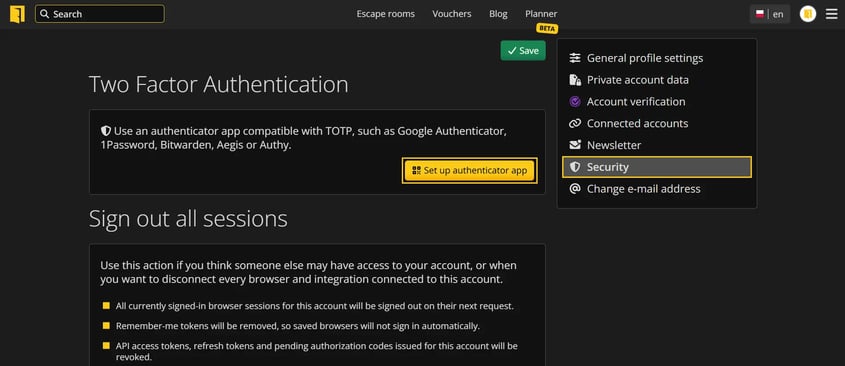

Step 2. Add an account in the authenticator app
Open your chosen authenticator app on your phone.
Select the option to add a new account.
Scan the QR code displayed on the screen.
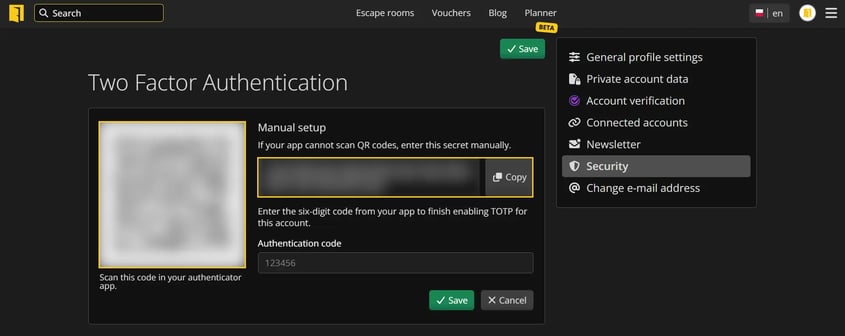

If the app cannot scan the QR code, select manual setup and enter the secret displayed on the page. Treat the setup secret just like a password. Do not share it with others, post it in screenshots, or store it in an unsecured location.
Step 3. Confirm the setup
After adding the account, the app will display a six-digit code.
Enter the code in the Authentication code field.
Tap Save.
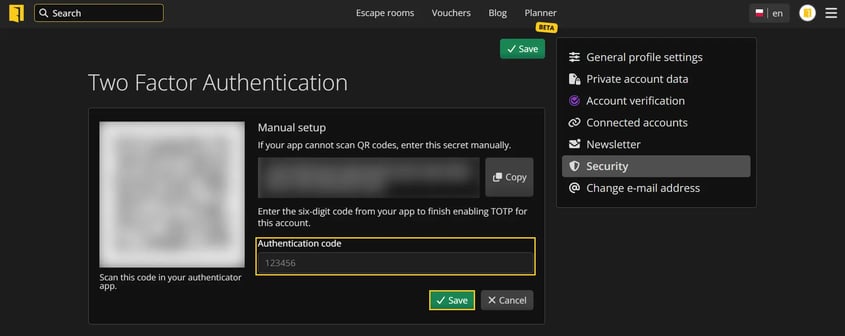

Once confirmed successfully, the following message will appear on the screen: "TOTP is enabled for this account."
Step 4. Require a code for every login
After enabling TOTP, select the option: “Require two-factor authentication on every login.” Then click Save.

From now on, when logging in, you’ll need to enter the current code from the authentication app in addition to your password.
What does the login process look like after enabling 2FA?
Enter your email address and password.
Open the authentication app.
Read the current six-digit code.
Enter it in the login form.
Confirm the login.
The code is valid for a short time. If the app displays a new code during the login process, use the most recent one.
How do I disable TOTP?
Go to Edit Profile.
Open the Security tab.
In the two-factor authentication section, click Disable TOTP.
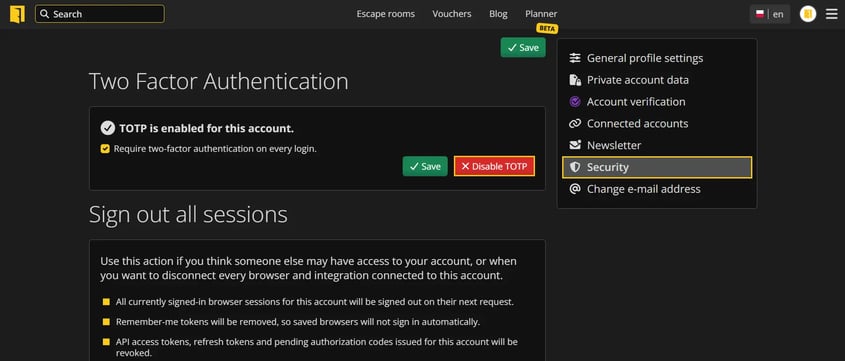

Once disabled, your account will be protected by a password only.
Need help?
If you need assistance with your account security or setting up two-factor authentication (2FA), contact us at support@lock.me or by phone at +48 577 502 902 (the helpline is available on business days from 10:00 a.m. to 4:00 p.m. Polish time).