In this article, you will learn how to add other events to your trip plan in the Trip Planner. We will guide you step by step through the entire process, from selecting the event type and filling in the details to saving it in your plan.
If you want to create a new itinerary first, go back to the post "What is Trip Planner?" where you will find step-by-step instructions for creating a plan. In this article, you will learn how to add an escape room available on Lockme to your planner.
Step 1: Select the type of event
In the add event section, click the "Other event" button to add your own activity to the plan.

Step 2: Name of the event
In the "Event name" field, enter a name for the activity, such as "Zoo visit" or "Dinner".

Step 3: Select an icon
Choose an icon that best fits the nature of the event. This will make it easier to recognize it later in the list.

Step 4: Set the date and time
Complete the "Start" and "End" fields, specifying the exact date of the event.

Step 5: Location
Enter the address of the event in the "Location" field or search for a place using the search engine. The selected place will be marked on the map.

Step 6: Price (optional)
In the "Price" field, you can add the cost of the event.

Step 7: Save the event
After filling in all the information, click the "Save" button to add the event to the schedule.

The added event will appear in the list and will be taken into account when generating the schedule.
How to edit or delete a scheduled event?
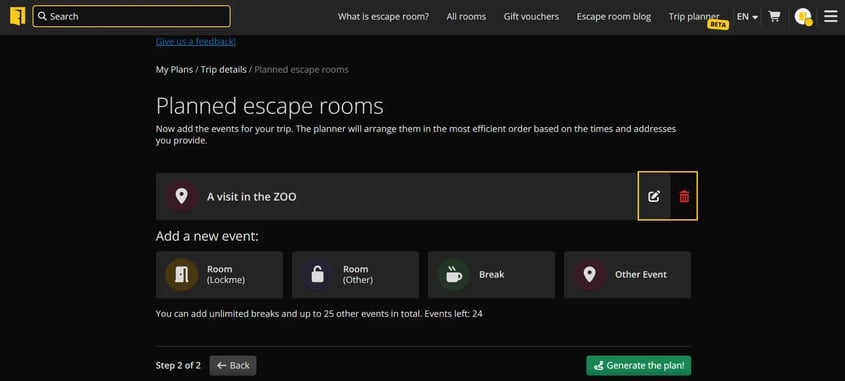
If your plans have changed, you can edit or delete an added event at any time before the final schedule is generated. Locate it in the event list. On the right side of the event bar you will find two icons:
Edit: click the pencil icon. This will reopen the configuration window where you can change the details of the event, such as name, date or location. After making changes, click the "Save" button.
Delete: click the trash icon to completely remove the event from your schedule.

In the following articles you will learn:
Do you have additional questions?
Write to: support@lock.me or call our hotline: +48 577 502 902