In this article, you will learn how to set up additional questions for bookings and how they work when creating new bookings through the widget and partner panel.
What are additional questions for booking?
The additional questions for booking feature allows the room owner to add their own questions displayed during the booking process. This allows you to collect additional information needed from customers before their visit.
Examples of uses
Additional questions can be used for such things as:
selecting the difficulty level of the room,
choice of game variant,
selecting the level of frightfulness,
collecting additional organizational information from customers.
Where to find the function?
To go to the configuration of additional questions:
Log in to the company panel.
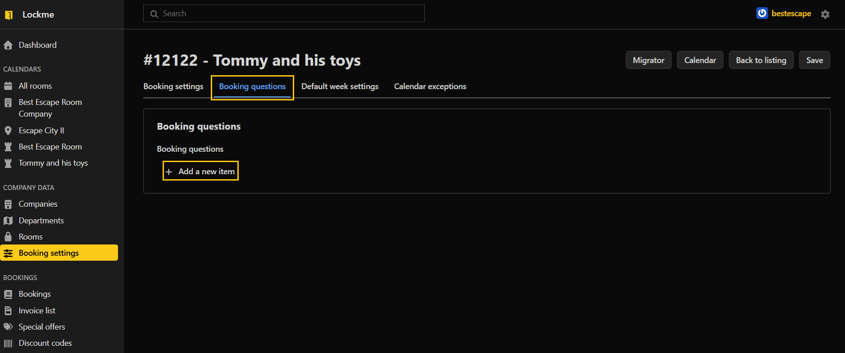
Go to the "Booking Settings" tab.
Select the room for which you want to configure questions.
Go to edit.

Open the "Booking questions" tab.

Adding a new question
To add a question:
Click the "Add new item" button.
Enter the content of the question.
Set the display position of the question.
Check the Required option if the customer must provide an answer before booking.
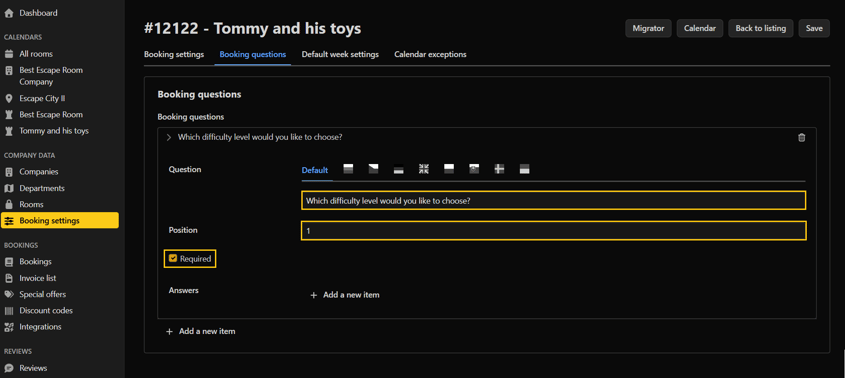
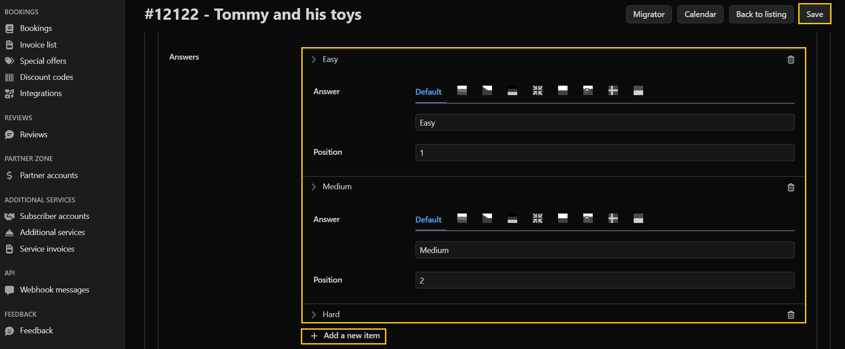
Click the "Add new item" button to add possible answers.
Set the position of the answer in the list.
Save the changes


How does the function work?
The added questions will be visible:
during booking through the booking widget,
when manually creating a reservation in the calendar view,
during editing of existing reservations.
The customer or employee making the reservation selects one of the available answers before saving the reservation.
Need help?
If you have additional questions about how to set up additional questions for your booking, please contact our team at support@lock.me or by phone through our hotline: +48 577 502 902